Need Additional Assistance?
If you have questions beyond this help file, visit the Anonindo Website or contact us directly.
Overview
The Anonindo Bulk Edit for WooCommerce plugin allows you to easily edit multiple product attributes, variations, prices, categories, and custom fields from a single, high-performance interface.
Using the plugin is simple and follows three standard steps:
- Filter: Select the products you want to edit.
- Edit & Preview: Apply bulk changes and inspect the changes in real-time.
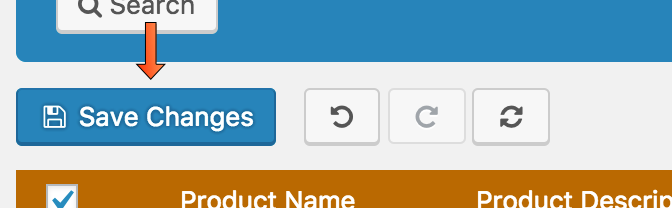
- Save: Click the "Save Changes" button to persist modifications to the database.
Filtering Products
Use the advanced filter toolbar to search and isolate the specific WooCommerce products you want to edit.
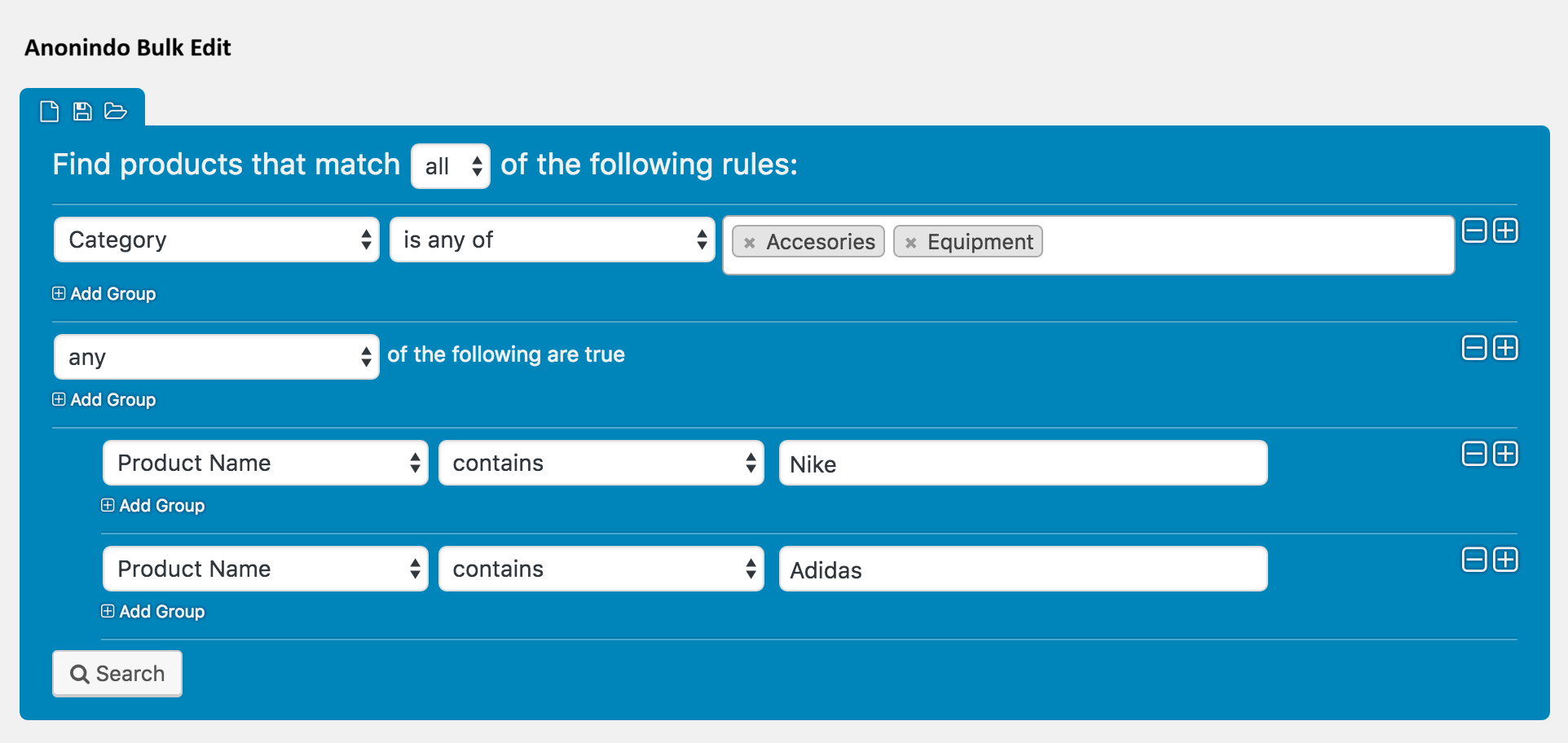
You can add groups of filters using the Add Group option. This allows you to combine logical conditions (AND/OR) to construct powerful target filters based on stock status, category, attributes, tags, price ranges, and more.
Saving & Loading Filters
If you regularly edit the same subset of products, you can save your current filters to save time in the future.
Saving a Filter
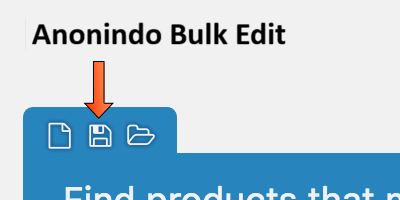
Once your filters are set up, click the Save Filter button, name the filter, and save it.
Opening a Saved Filter
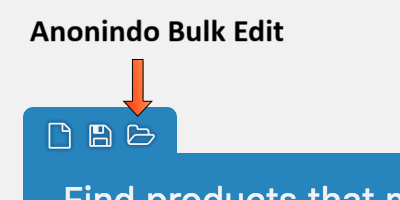
To reload a previously saved filter, click the Open Filter button and select it from the list.
Bulk Editing
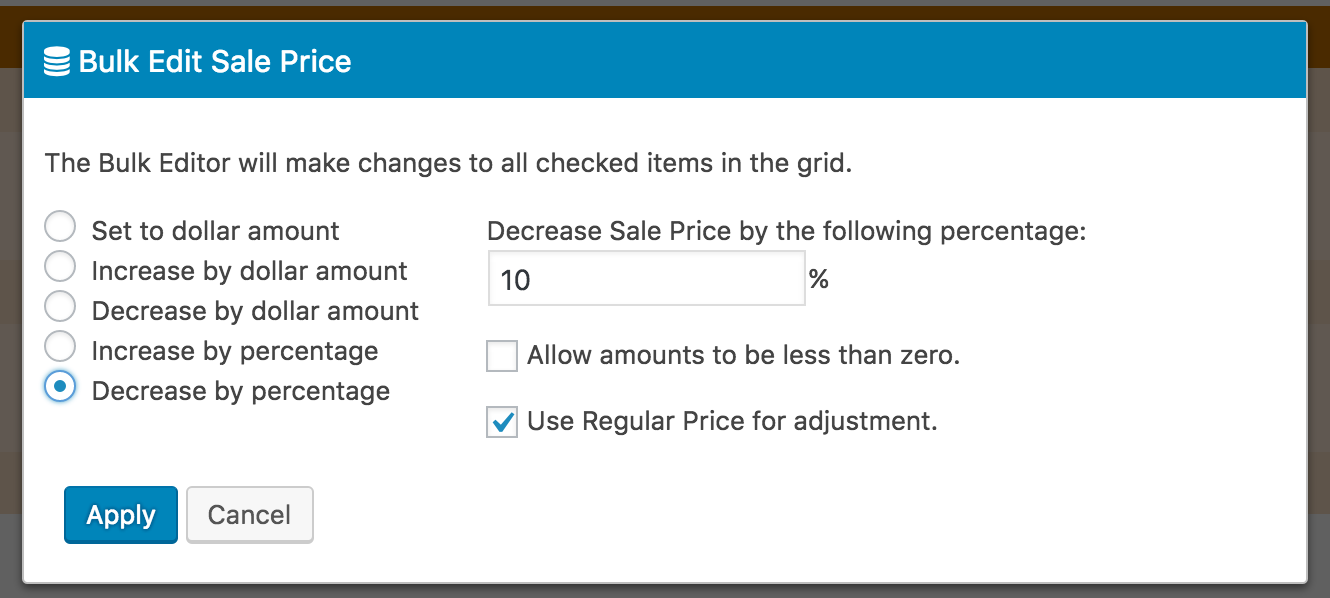
To perform bulk updates on a specific column, click on its column heading to open the bulk editor modal.

Different formatting and operation inputs will be presented depending on the attribute type of the field you are editing (e.g., set new values, adjust by percentages, replace text, prepend/append text, clear values).
Manual Editing
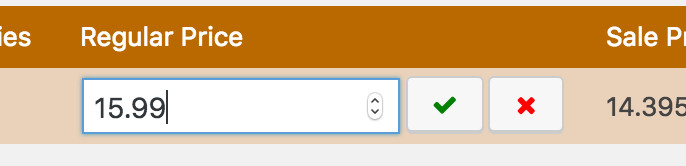
You can edit cells directly inside the product grid. Simply click on a specific cell, enter the new value in the inline editor, and press enter to set the changes in the grid preview.
Undo / Redo
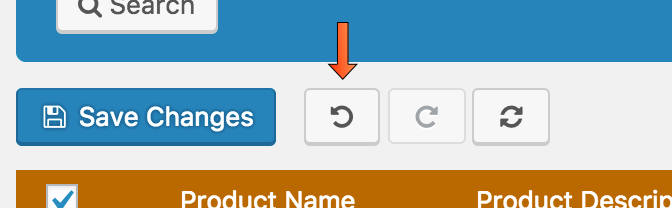
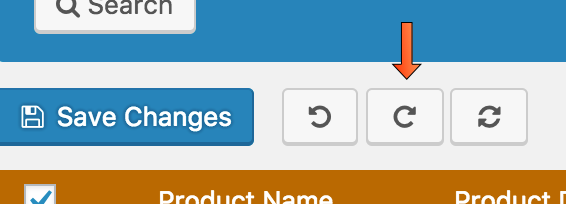
If you make a mistake while performing manual or bulk edits, you can instantly roll back or forward your actions using the toolbar buttons.
Reverting Changes (Undo)
Reapplying Changes (Redo)
Saving Changes
Changes made in the grid are kept as a preview and highlighted in green. When you are fully satisfied with all the edits, click the Save Changes button on the toolbar to persist the changes to your WooCommerce database.